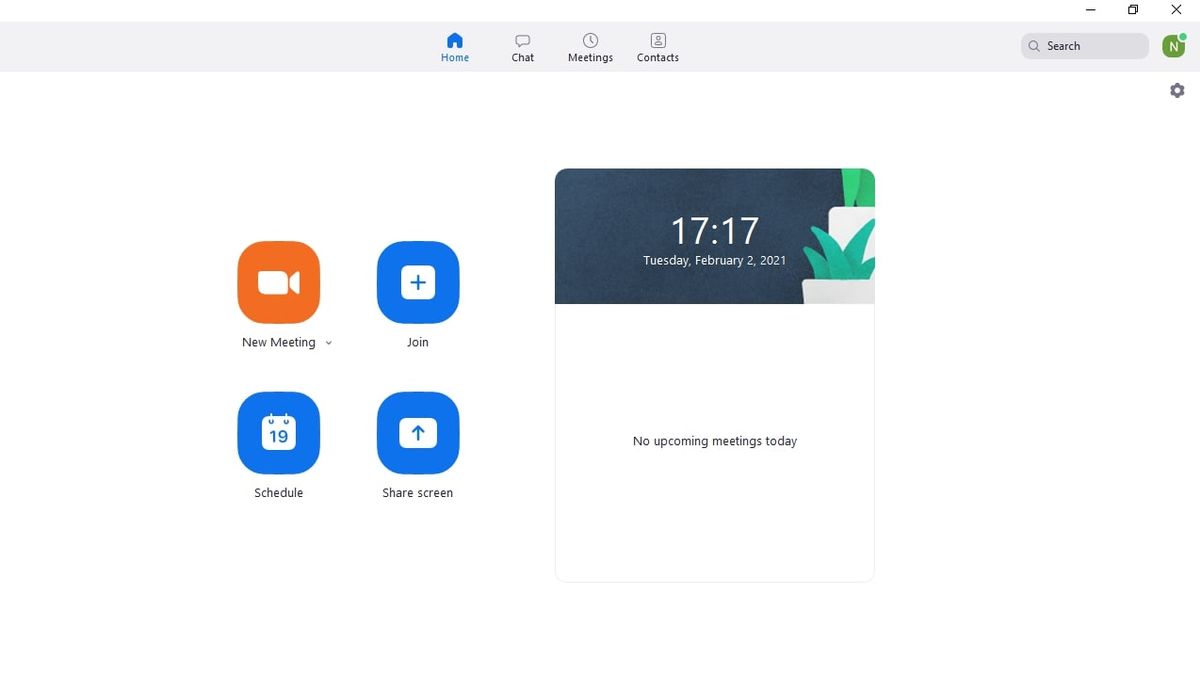
Managing your digital meetings requires more than just clicking a desktop app icon. The Zoom Web Portal serves as the primary command center for configuring account settings, managing user licenses, and reviewing security logs. While the desktop application handles live interactions, the browser-based portal controls the structural rules of your entire organization.
You'll use this centralized hub to enforce security baselines, provision team members, and adjust cloud storage limits. Knowing how to navigate its hidden menus saves administrative hours and keeps your virtual spaces secure.
Navigating the Zoom Web Portal Dashboard
Once you sign in with your credentials, the dashboard presents a snapshot of account activity, active user counts, and current meeting metrics. The left-hand navigation menu splits your controls into personal and administrative categories.
- Profile and Personal Settings: Update your personal time zone, language preferences, and personal meeting ID (PMI) settings.
- Meeting and Webinar Management: Schedule upcoming sessions, configure recurring meetings, and manage registration lists for large events.
- Recordings Repository: Access local and cloud recordings, review transcripts, and manage storage cleanup policies.
Account owners and administrators see additional tabs for user management, account settings, and reporting dashboards.
Configuring User Management and Permissions
Managing team members efficiently prevents security gaps. Through the portal's User Management section, administrators can add individual users via email or import hundreds of accounts at once using a CSV template.
Assigning specific user types and licenses dictates which features members can access. For instance, you can assign basic licenses to general staff while reserving large meeting or webinar add-ons for marketing and communications teams. Group management simplifies this process further. By creating groups like Sales or Engineering, you can apply uniform policies—such as default waiting room rules or recording permissions—across entire departments without configuring each account manually.
Enforcing Global Security Settings
Security configurations protect sensitive discussions from uninvited guests. Administrators can establish enterprise-wide defaults that override individual preferences, ensuring compliance across every department.
- Authentication Requirements: Mandate Single Sign-On (SSO) or specific email domains to restrict access to verified personnel.
- Waiting Rooms: Screen participants before allowing them into the main room, giving hosts complete control over entry.
- Encryption Controls: Enforce enhanced encryption standards for sensitive internal corporate communications.
Locking these global settings prevents individual users from accidentally disabling critical security features.
Accessing Advanced Reporting and Analytics
Tracking platform usage helps organizations measure ROI and troubleshoot engagement issues. The portal provides deep visibility through several dedicated reporting modules.
Usage reports display total meeting minutes, active hosts, and participant counts across customizable date ranges. Audit logs record administrative actions, tracking who changed specific security settings or modified user licenses. You can export these datasets as CSV files for internal compliance audits or executive summaries.
For deeper insights into official platform updates, you can review the latest changes on the Zoom Updates Page.
Common Mistakes to Avoid
Administrators and users often run into avoidable roadblocks when managing their accounts through a browser.
- Neglecting Group-Level Overrides: Changing settings globally without checking group configurations often leads to unexpected permission conflicts. Always check if a departmental group overrides your global baseline.
- Ignoring Cloud Storage Caps: Unmonitored cloud recordings fill up storage quotas quickly. Set up automatic deletion rules for older recordings to avoid unexpected storage fees.
- Failing to Test SSO Integration: When updating authentication rules, always test login credentials with a secondary test account before enforcing SSO organization-wide.
Frequently Asked Questions
Can I change my email address from the Zoom Web Portal?
Yes. Navigate to your Profile tab under personal settings, locate your sign-in email address, and click Edit. You'll need to verify the new email address before the change takes effect.
Why can't I see certain cloud recordings in my portal?
Recordings might be stored locally on a host's computer rather than the cloud, or they may have been deleted by an automated retention policy. Check your trash folder within the recordings tab to restore recently deleted files.
How do I restrict meetings to internal employees only?
You can enforce this by requiring authentication in your security settings, ensuring that only users signed into specific organizational domains or SSO accounts can join your sessions. Learn more about identity management via Okta's Directory Services Guide for enterprise integrations.